
Hairsalon theme (hair and beauty salon)
Hairsalon theme (hair and beauty salon)
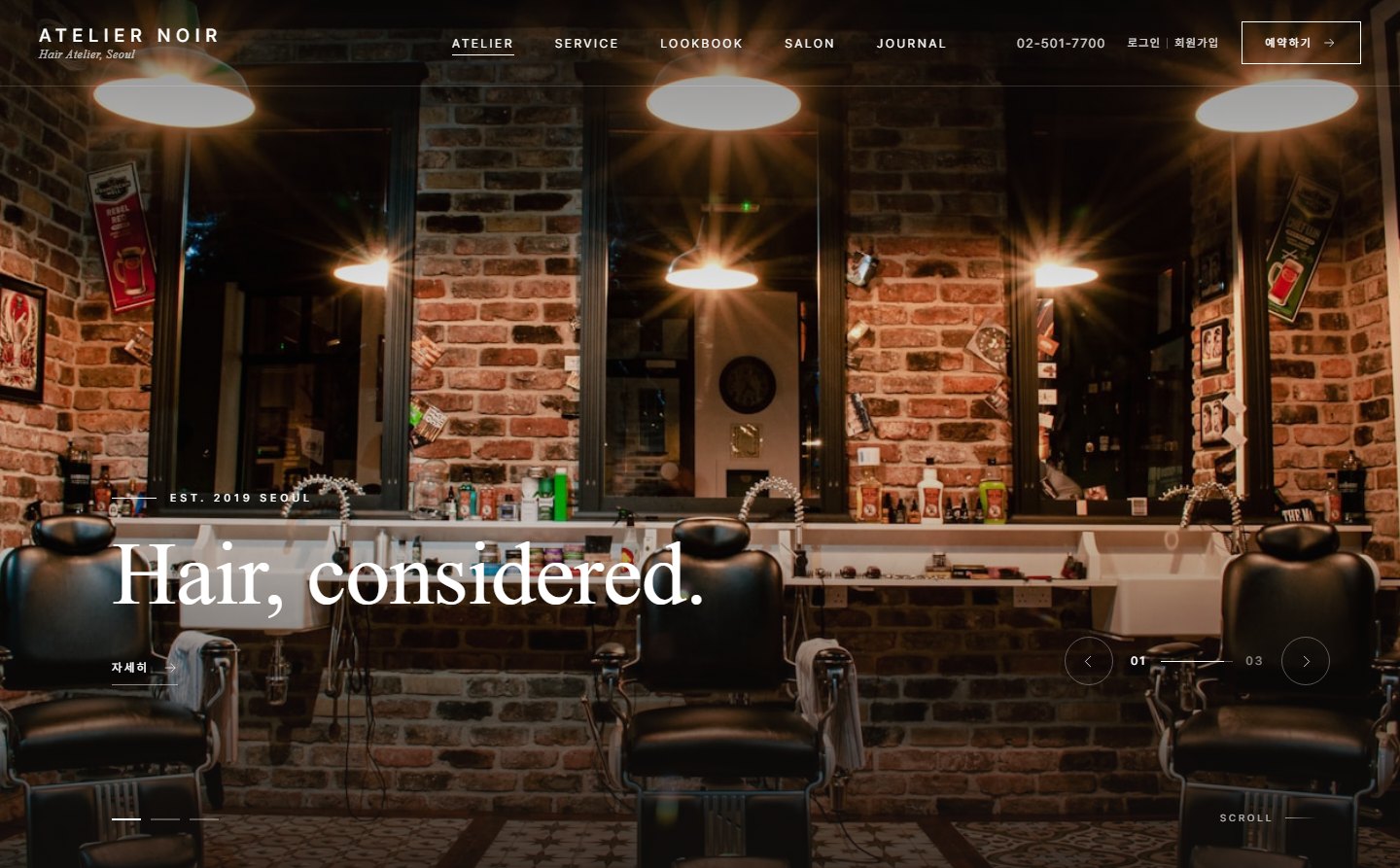
This is the manual for Hairsalon (hairsalon), the official Zittme theme for hair salons and beauty salons. It opens with a full-screen slider and continues with the service menu, designers, styles, salon information, and a booking call-to-action. Services and designers come straight from the Reservation module and salon information from the Branch module, so the first screen and the booking screens never drift apart. It layers a bronze accent over ink and ivory backgrounds, and the fonts are bundled with the theme, so no external CDN is used.
Demo: hairsalon-demo.zitt.me
Components
| Component | Location | Role |
|---|---|---|
| Layout | themes/hairsalon/layouts/hairsalon | Site frame + first screen (slider, intro, services, designers, styles, salons, booking call-to-action) |
| Reservation skin | themes/hairsalon/modules/reservation | Service list, choosing salon/designer/date and time, booking confirmation, result, My bookings |
| Branch skin | themes/hairsalon/modules/branch | Salon list (region filter), salon detail (business hours, closed days, map, amenities) |
| Board skin | themes/hairsalon/modules/board | Photo style (lookbook), post list style (journal) |
| Member and message skins | themes/hairsalon/modules/{member, communication} | Login, sign-up, member info, messages |
| zittme Pay skin | themes/hairsalon/modules/zittme_pay | Deposit payment, payment result, bank transfer instructions |
Installing and applying
- Install it from the store, or unzip it into
themes/hairsalon. - In Admin > Design settings, choose Hairsalon and apply it.
- Install the Reservation module and create a booking page (e.g., mid
reservation), then enter/reservationin Layout settings > Basic > Booking page address. The top booking button and "Book with this designer" on designer cards link to this address. - If you have several salons, register them with the Branch module. The theme works without the Branch module; only the salon information section on the first screen won't appear.
- To take deposits, install zittme Pay and turn on a payment method (bank transfer or PG).
- Accent color: The default is bronze (#b08d57). When you change the accent color, the theme automatically picks the text color on buttons (white/ink) and the accent color used for text (labels, links), matching contrast so text stays readable even with a light color.
- Logo: Without a logo image, the logo text is used; without that, the site title. Over the slider, the "Light logo image" is used.
- Page types: Entering
min a sitemap menu class draws that menu like the first screen, andsdraws it as a subpage. - Service list: Services by category, with description, duration, and price. Clicking a service moves to the booking steps.
- Salon, designer, date and time: Choosing a salon leaves only that salon's designers. Choosing "Any designer" assigns an available one. Days with no openings can't be selected, and if there are no days left this month, next month is shown first.
- Booking confirmation: Name, contact number, email, lookup password (guests), a note, and consent to personal information collection. If there is a deposit, "Pay and book" moves to the zittme Pay payment screen.
- Result and My bookings: Shows the booking number and status. Guests check it in My bookings with the booking number and lookup password. Members also see their points and coupons.
Recommended: Zittme 1.0.2 or later, Reservation 1.0.0 or later. Since this is a responsive theme, we recommend turning off the mobile-only view.
First screen composition
Set it on the First screen slider and First screen composition tabs of Layout settings. The site's front page (start menu) is treated as the first screen without any extra setting.
| Section | Settings | Content | |||
|---|---|---|---|---|---|
| Slider | Slides, advance interval, height | One per line: `image-url \ | small-text \ | large-text \ | link. \n` inside the large text becomes a line break. Setting the interval to 0 turns off auto-advance. |
| Intro | Intro heading, body, signature | One sentence and a short paragraph below the slider. If the heading is empty, the section is hidden. | |||
| Service menu | Show service menu | Groups the services registered in the Reservation module by category and shows duration and price. | |||
| Designers | Show designers | Shows the Reservation module's staff as horizontally scrolling cards. Without a photo, the first letter of the name is shown large. | |||
| Styles | Style board address and count, lookbook photos | If you enter a board mid, it shows that board's photos; if empty, it shows the images entered in "Lookbook photos" as a mosaic. It shows photos in multiples of 5 so the mosaic fills without gaps (e.g., 5 out of 7). | |||
| Salon information | Show branch information | Shows salons from the Branch module with open/closed status. | |||
| Booking call-to-action | Closing text, background image | The booking button section at the very bottom of the first screen. If the text is empty, it is hidden. |
Colors and logo
Booking screens (Reservation skin)
Board
Choose with the list style in board settings. If photos are the focus, use gallery (lookbook); if text is the focus, use journal (notices, journal). Guests can also leave comments with a nickname and password (depending on board permissions).
Footer
In Layout settings > Footer, enter business information (multiple lines with line breaks), social links (name | url), and the copyright text.